
571 lines
21 KiB
Markdown
571 lines
21 KiB
Markdown
# tar1090
|
|
|
|
|
|
|
|
|
|
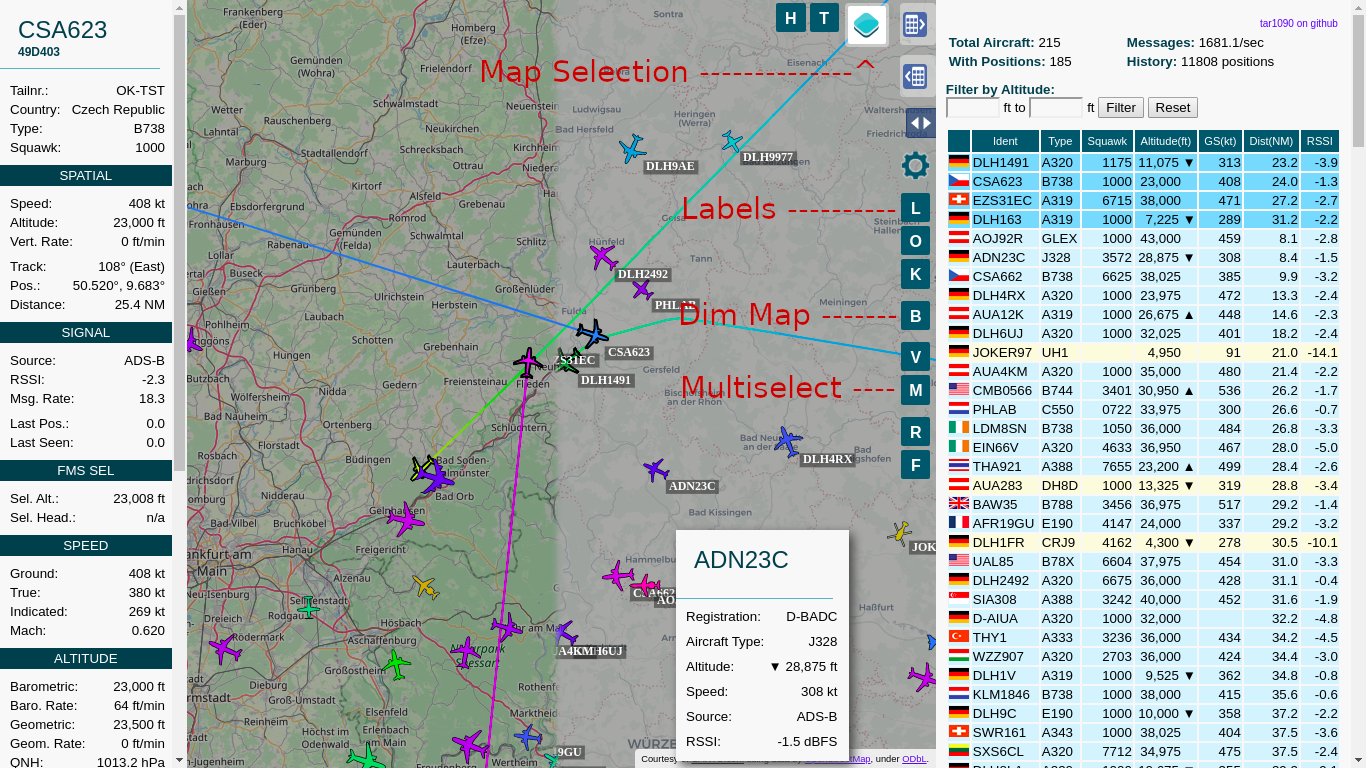
Provides an improved webinterface for use with ADS-B decoders readsb / dump1090-fa
|
|
|
|
- Improved adjustable history
|
|
- Show All Tracks much faster than original with many planes
|
|
- Multiple Maps available
|
|
- Map can be dimmed/darkened
|
|
- Multiple aircraft can be selected
|
|
- Labels with the callsign can be switched on and off
|
|
|
|
## NO WARRANTY
|
|
|
|
See the bottom of this page or the LICENSE for details.
|
|
While striving not to disrupt an existing Raspbian / Debian / Ubuntu installation, this can't be guaranteed.
|
|
This install script assumes Raspbian / Debian / Ubunutu and will not work on systems without apt.
|
|
|
|
tar1090 is not a readsb / dump1090-fa replacement, it merely adds an additional webinterface for an existing readsb or dump1090-fa installation.
|
|
dump1090-mutability installations should work as well, aircraft details will be limited though.
|
|
|
|
## Installation
|
|
|
|
```
|
|
sudo bash -c "$(wget -nv -O - https://github.com/wiedehopf/tar1090/raw/master/install.sh)"
|
|
```
|
|
|
|
## View the added webinterface
|
|
|
|
Click the following URL and replace the IP address with address of your Raspberry Pi:
|
|
|
|
http://192.168.x.yy/tar1090
|
|
|
|
If you are curious about your coverage, try this URL:
|
|
|
|
http://192.168.x.yy/tar1090/?pTracks
|
|
|
|
Check further down for keyboard shortcuts.
|
|
|
|
## Update (same command as installation)
|
|
|
|
```
|
|
sudo bash -c "$(wget -nv -O - https://github.com/wiedehopf/tar1090/raw/master/install.sh)"
|
|
```
|
|
|
|
Configuration should be preserved.
|
|
|
|
## Testing changes to tar1090
|
|
|
|
- Clone the github repo
|
|
- Make changes
|
|
- run `./install.sh test` to install from your local directory
|
|
|
|
|
|
## Configuration part 1: History interval and number of snapshots / ptracks duration (optional)
|
|
|
|
Edit the configuration file to change the interval in seconds and number of history files saved:
|
|
```
|
|
sudo nano /etc/default/tar1090
|
|
```
|
|
Ctrl-x to exit, y (yes) and enter to save.
|
|
|
|
Apply the configuration:
|
|
```
|
|
sudo systemctl restart tar1090
|
|
```
|
|
|
|
The duration of the history in seconds can be calculated as interval times history_size.
|
|
|
|
## Configuring part 2: the web interface (optional):
|
|
|
|
Remove the // at the start of a line, otherwise the setting will not be used.
|
|
|
|
```
|
|
sudo nano /usr/local/share/tar1090/html/config.js
|
|
```
|
|
|
|
Ctrl-x to exit, y (yes) and enter to save.
|
|
Then Ctrl-F5 to refresh the web interface in the browser.
|
|
|
|
If you somehow broke the interface or want the default config back:
|
|
```
|
|
sudo rm /usr/local/share/tar1090/html/config.js
|
|
```
|
|
Then run the install script again.
|
|
|
|
## Home / receiver location:
|
|
|
|
This is set in the decoder, so readsb or dump1090-fa, if you used one of my scripts to install their readme will have further instructions on how to set the location.
|
|
|
|
## Change Log
|
|
|
|
The commit log on the github page is the only form of change log.
|
|
If you can't find the commit log or don't understand what it means, you have 3 options:
|
|
- Assume there is no update and use the currently installed version.
|
|
- Run the update script as provided above and let it surprise you!
|
|
- Complain about the lack of a change log and be mocked.
|
|
|
|
While i make this interface available for others to install and hope you like it,
|
|
i maintain this interface mainly for users who are curious and can figure it out themselves.
|
|
Documentation and explanation is time consuming to do and as such i choose to limit it to the essential.
|
|
|
|
## Reporting a bug
|
|
|
|
If you think you have found a bug, open an issue here on github.
|
|
Please check all the buttons and read all the tooltips before you do.
|
|
Try deleting the browser cache for the tar1090 page.
|
|
|
|
|
|
## Enable (/disable) FA links in the webinterface (previously enabled by default)
|
|
|
|
```
|
|
# ENABLE:
|
|
sudo sed -i -e 's?.*flightawareLinks.*?flightawareLinks = true;?' /usr/local/share/tar1090/html/config.js
|
|
# ENABLE if the above doesn't work (updated from previous version)
|
|
echo 'flightawareLinks = true;' | sudo tee -a /usr/local/share/tar1090/html/config.js
|
|
# DISABLE:
|
|
sudo sed -i -e 's?.*flightawareLinks.*?flightawareLinks = false;?' /usr/local/share/tar1090/html/config.js
|
|
```
|
|
|
|
Then F5 to refresh the web interface in the browser.
|
|
|
|
If your instance is not at /tar1090 you'll need to edit the config.js in the approppriate html folder, see "Multiple instances".
|
|
|
|
## Enable Share links to ADSB-X or other websites using tar1090
|
|
```
|
|
# ENABLE:
|
|
sudo sed -i -e 's?.*shareBaseUrl.*?shareBaseUrl = "https://globe.adsbexchange.com/";?' /usr/local/share/tar1090/html/config.js
|
|
# ENABLE if the above doesn't work (updated from previous version)
|
|
echo 'shareBaseUrl = "https://globe.adsbexchange.com/";' | sudo tee -a /usr/local/share/tar1090/html/config.js
|
|
# DISABLE:
|
|
sudo sed -i -e 's?.*shareBaseUrl.*?shareBaseUrl = false;?' /usr/local/share/tar1090/html/config.js
|
|
```
|
|
|
|
If your instance is not at /tar1090 you'll need to edit the config.js in the approppriate html folder, see "Multiple instances".
|
|
|
|
## UAT receiver running dump978-fa and skyaware978:
|
|
|
|
See the instructions for "Configuration part 1".
|
|
This is the relevant part in the configuration file:
|
|
```
|
|
# Change to yes to enable UAT/978 display in tar1090
|
|
ENABLE_978=no
|
|
# If running dump978-fa on another computer, modify the IP-address as appropriate.
|
|
URL_978="http://127.0.0.1/skyaware978"
|
|
```
|
|
Open and save as described above in the Configuration section.
|
|
Follow the instructions in the file.
|
|
|
|
### UAT only configuration
|
|
|
|
tar1090 running on the same pi as the skyaware978/dump978-fa:
|
|
|
|
```
|
|
echo /run/skyaware978 tar1090 | sudo tee /etc/default/tar1090_instances
|
|
```
|
|
|
|
After that run the install script and it should work.
|
|
978 should be disabled in the config file for this configuration.
|
|
UAT traffic will be displayed as ADS-B, this can't be avoided.
|
|
|
|
### Installation / Update to work with another folder, for example /run/combine1090
|
|
|
|
|
|
```
|
|
wget -nv -O /tmp/install.sh https://github.com/wiedehopf/tar1090/raw/master/install.sh
|
|
sudo bash /tmp/install.sh /run/combine1090
|
|
```
|
|
|
|
## Remove / Uninstall
|
|
|
|
```
|
|
sudo bash -c "$(wget -nv -O - https://github.com/wiedehopf/tar1090/raw/master/uninstall.sh)"
|
|
```
|
|
|
|
## Using the filters
|
|
|
|
js regex format, some basics (much more extensive issue available online on javascript regex syntax):
|
|
|
|
- a single `.` is the wildcard for exactly one character
|
|
- multiple patterns can be combined with or: `|`
|
|
|
|
### Some examples of useful constructs:
|
|
|
|
#### Filter by type code:
|
|
|
|
```
|
|
B737 family: B73. (B73 and any character in the fourth position)
|
|
A320 family: A32.
|
|
B737-900 and B737 Max 9: B739|B39M
|
|
737 family including max: B73.|B3.M
|
|
B737 / A320 families: B73.|B3.M|A32.|A2.N
|
|
Only A320 and B737 models: A32|B73
|
|
Exclude a certain type: ^(?!A320)
|
|
Exclude multiple patterns: ^(?!(A32.|B73.))
|
|
```
|
|
|
|
#### Filter by type description:
|
|
|
|
```
|
|
Helicopters: H..
|
|
Landplanes with 2 jet engines: L2J
|
|
Landplanes with any number of piston engines: L.P
|
|
Helicopters any number of turbin engines : H.T
|
|
All turboprop powered things, including turbine helicopters: ..T
|
|
Everything with 4 engines: .4.
|
|
Everything with 2 3 and 4 engines: .2.|.3.|.4.
|
|
```
|
|
|
|
## Keyboard Shortcuts
|
|
|
|
|
|
- Q and E zoom out and in.
|
|
- A and D move West and East.
|
|
- W and S move North and South.
|
|
- C or Esc clears the selection.
|
|
- M toggles multiselect.
|
|
- T selects all aircraft
|
|
- B toggle map brightness
|
|
|
|
## URL query parameters (/tar1090/?icao=123456&zoom=5 and similar)
|
|
|
|
See [README-query.md](README-query.md)
|
|
|
|
## Multiple instances
|
|
|
|
The script can install multiple instances, this is accomplished by first editing `/etc/default/tar1090_instances`:
|
|
|
|
On each line there must be one instance.
|
|
First on the line the source directory where the aircraft.json is located.
|
|
Second on the line the name where you want to access the according website.
|
|
(http://pi/tar1090 or http://pi/combo or http://pi/978 in this example)
|
|
|
|
If you want the instance at http://pi/, use webroot as a name.
|
|
|
|
The main instance needs to be included in this file.
|
|
|
|
Example file:
|
|
```
|
|
/run/dump1090-fa tar1090
|
|
/run/combine1090 combo
|
|
/run/skyaware978 978
|
|
/run/dump1090-fa webroot
|
|
```
|
|
|
|
After saving that file, just run the install script and it will install/update
|
|
all instances.
|
|
|
|
Configuration for each instance will be separate, in the example the config files would be:
|
|
```
|
|
/etc/default/tar1090
|
|
/etc/default/tar1090-combo
|
|
/etc/default/tar1090-978
|
|
/etc/default/tar1090-webroot
|
|
```
|
|
|
|
The config.js will also have another path, to edit each config:
|
|
```
|
|
sudo nano /usr/local/share/tar1090/html/config.js
|
|
sudo nano /usr/local/share/tar1090/html-combo/config.js
|
|
sudo nano /usr/local/share/tar1090/html-978/config.js
|
|
sudo nano /usr/local/share/tar1090/html-webroot/config.js
|
|
```
|
|
|
|
HTML folders will be:
|
|
```
|
|
/usr/local/share/tar1090/html
|
|
/usr/local/share/tar1090/html-combo
|
|
/usr/local/share/tar1090/html-978
|
|
/usr/local/share/tar1090/html-webroot
|
|
```
|
|
|
|
The run folder and systemd service will be called tar1090-combo and tar1090-978
|
|
in this example file.
|
|
The main instance is the exception to that rule, having systemd service and run
|
|
directory called just tar1090.
|
|
|
|
### Removing an instance
|
|
|
|
For example removing the instance with the name combo and 978:
|
|
|
|
First remove the corresponding line from `/etc/default/tar1090_instances` and
|
|
save the file so when you update it doesn't get installed again.
|
|
|
|
Then run the following command adapted to your instance name, you'll need to
|
|
include the tar1090- which is automatically added for the service names:
|
|
|
|
```
|
|
sudo bash /usr/local/share/tar1090/uninstall.sh tar1090-combo
|
|
sudo bash /usr/local/share/tar1090/uninstall.sh tar1090-978
|
|
```
|
|
|
|
If the instance was installed with the old method without the tar1090_instances
|
|
file, you'll have to try without the tar1090- before the combo, like this:
|
|
|
|
```
|
|
sudo bash /usr/local/share/tar1090/uninstall.sh combo
|
|
sudo bash /usr/local/share/tar1090/uninstall.sh 978
|
|
```
|
|
|
|
## lighttpd
|
|
|
|
tar1090 is now available at :8504 by default when using lighttpd. (port 8504)
|
|
|
|
To display tar1090 at /, add an instance as described above that has the name webroot.
|
|
It will be available at /
|
|
|
|
|
|
|
|
## nginx configuration
|
|
|
|
If nginx is installed, the install script should give you a configuration file
|
|
you can include. The configuration needs to go into the appropriate server { }
|
|
section.
|
|
In the usual configuration that means to add this line:
|
|
```
|
|
include /usr/local/share/tar1090/nginx-tar1090.conf;
|
|
```
|
|
in the server { } section of either `/etc/nginx/sites-enabled/default` or `/etc/nginx/conf.d/default.conf` depending on your system configuration.
|
|
Don't forget to restart the nginx service.
|
|
|
|
## heywhatsthat.com range outline:
|
|
|
|
To judge the actual range (/?pTracks, see next chapter), one needs to first know what kind of range is even possible for the receiver location. 1090 MHz reception requires a direct line of sight through air to what you want to receive, thus depends on obstacles and the curvature of the earth. To get that theoretical range for a location, follow the guide in this chapter.
|
|
|
|
#### 1: Create panorama and look at your outline on the heywhatsthat page
|
|
- Visit http://www.heywhatsthat.com/
|
|
- Click "New Panorama"
|
|
- Set the location for your antenna precisely
|
|
- Enter a title / submit the request and wait for it to finish
|
|
- Scroll down to the map, look at the buttons in the top right of the map
|
|
- Use the "up in the air" button on the map, reduce map magnification
|
|
- You can change the altitudes (ft) below the map to view different outlines for your location
|
|
- Those outlines tell you how far you can receive aircraft at the associated altitudes
|
|
- The panorama does not take into account obstacles closer to the antenna than approximately 100 ft, trees are also not considered but can block reception
|
|
|
|
#### 2: Integrate theoretical range outline into your local tar1090 display
|
|
- For use on the tar1090 map the altitude will be set by changing the download URL
|
|
- Near the top of the page, an URL for the panorama is mentioned.
|
|
- Replace the XXXXXX in the following command with the ID contained in your panorama URL, then run the command on your pi:
|
|
```
|
|
sudo /usr/local/share/tar1090/getupintheair.sh XXXXX
|
|
```
|
|
- You should now have a range outline for the theoretical range for aircraft at 40000 ft on your tar1090 map
|
|
|
|
- It might be interesting to compare to http://192.168.x.yy/tar1090/?pTracks which will by default will display the last 8 hours of traces.
|
|
|
|
- More options for loading multiple outlines and for a different instance
|
|
```
|
|
# load two outlines, 10000 ft and 40000 ft
|
|
sudo /usr/local/share/tar1090/getupintheair.sh XXXXX 3048,12192
|
|
# load a 10000 ft outline for the tar1090 instance located at /978
|
|
sudo /usr/local/share/tar1090/getupintheair.sh XXXXX 3048 978
|
|
|
|
# load a 40000 ft outline for the tar1090 instance located at /adsbx
|
|
sudo /usr/local/share/tar1090/getupintheair.sh XXXXX 12192 adsbx
|
|
```
|
|
|
|
## /tar1090/?pTracks
|
|
|
|
|
|
|
|
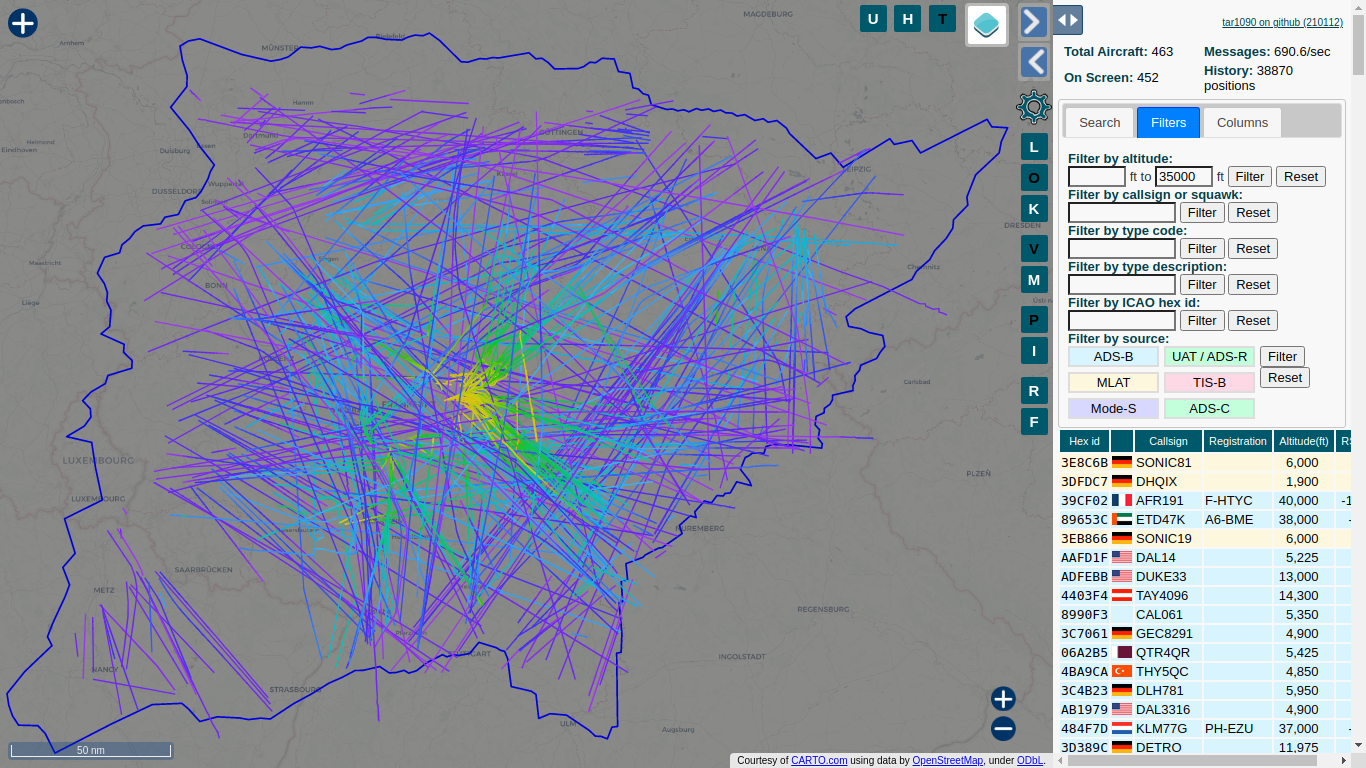
- Add /?pTracks to the usual /tar1090 URL, should look like this: http://192.168.x.yy/tar1090/?pTracks
|
|
- Shows the last 8 hours of traces you have seen, gives a nice visual representation of your coverage / range
|
|
- Can be filtered by altitude with the altitude filter
|
|
- Configure a longer duration than 8 hours via the [configuration](#configuration-part-1-history-interval-and-number-of-snapshots--ptracks-duration-optional)
|
|
- Restrict the duration shown to 2 hours: /tar1090/?pTracks=2
|
|
- Draw less points which reduces display time (higher interval, lower compute time, default 15): /tar1090/?pTracks=8&pTracksInterval=60
|
|
|
|
## 0800-DESTROY-SD-CARD
|
|
|
|
History function as used by several online aggregators using tar1090
|
|
(destroy sd-card is a bit of a joke but obviously it will use disk space and create quite a few files, they will be kept indefinitely so if the folder grows too big you'll have to delete old files yourself)
|
|
|
|
The data is generated by my version of readsb so you'll have to run that:
|
|
<https://github.com/wiedehopf/readsb>
|
|
<https://github.com/wiedehopf/adsb-scripts/wiki/Automatic-installation-for-readsb>
|
|
|
|
The following command line options need to be added to for example the decoder options in `/etc/default/readsb`
|
|
```
|
|
--write-globe-history /var/globe_history --heatmap 30
|
|
```
|
|
Aggregators will generally use `--write-json-globe-index` as well but that's not necessary if you don't have more than 500 concurrent planes.
|
|
|
|
/var/globe_history needs to be a directory writeable by the user readsb.
|
|
`sudo mkdir /var/globe_history` and `sudo chown readsb /var/globe_history` are useful for that.
|
|
|
|
You should also download
|
|
```
|
|
wget -O /usr/local/share/tar1090/aircraft.csv.gz https://github.com/wiedehopf/tar1090-db/raw/csv/aircraft.csv.gz
|
|
```
|
|
|
|
and add this command line option (for exaple via /etc/default/readsb):
|
|
```
|
|
--db-file /usr/local/share/tar1090/aircraft.csv.gz
|
|
```
|
|
|
|
You will also need to point tar1090 to /run/readsb in case you are using another dump1090/readsb.
|
|
See the "multiple instances" readme section.
|
|
|
|
If you don't want readsb to read data from the SDR, you'll also need to change the receiver options line to something like this:
|
|
```
|
|
RECEIVER_OPTIONS="--net-only --net-connector 192.168.2.7,30005,beast_in"
|
|
```
|
|
If you have another dump1090/readsb running on the same machine, you'll also need to change all the ports to avoid conflicts.
|
|
|
|
This will obviously write data to the hard drive, be aware of that.
|
|
The data format is subject to change, don't expect this to be stable.
|
|
Be aware of that when upgrading either tar1090 or readsb to a new commit.
|
|
|
|
If you're using --write-json-globe-index with tar1090, you might be interested in tar1090
|
|
using the readsb API to get data, it's less requests and usually more efficient,
|
|
for details see the file nginx-readsb-api.conf
|
|
(this needs adding to your existing nginx tar1090 configuration, this is only for people who really know their stuff anyway)
|
|
|
|
## A separate instance with longer data retention for gauging range
|
|
|
|
If this seems too complicated for you or you don't want a 2nd instance, changing / adding PTRACKS=24 to the /etc/default/tar1090 configuration should also extend the history (for /?pTracks only).
|
|
|
|
```
|
|
sudo nano /etc/default/tar1090_instances
|
|
```
|
|
|
|
put in these two lines if you're using readsb
|
|
```
|
|
/run/readsb tar1090
|
|
/run/readsb persist
|
|
```
|
|
|
|
put in these two lines if you're using dump1090-fa
|
|
```
|
|
/run/dump1090-fa tar1090
|
|
/run/dump1090-fa persist
|
|
```
|
|
|
|
if you then run the tar1090 install script afterwards you'll have an extra instance you can configure the history retention for.
|
|
```
|
|
sudo bash -c "$(wget -nv -O - https://github.com/wiedehopf/tar1090/raw/master/install.sh)"
|
|
sudo nano /etc/default/tar1090-persist
|
|
```
|
|
|
|
change to these values for 24h of history:
|
|
|
|
```
|
|
# Interval at which the track history is saved
|
|
INTERVAL=20
|
|
# How many points in time are stored in the track history
|
|
HISTORY_SIZE=4300
|
|
```
|
|
|
|
then
|
|
```
|
|
sudo systemctl restart tar1090-persist
|
|
```
|
|
and the persist instance will start saving more data.
|
|
You can then visit `/persist/?pTracks` instead of `/tar1090` to get the complete 24h history displayed.
|
|
Press T to toggle the traces on and off, this is recommended for zooming and panning as with the traces showing this can be slow.
|
|
|
|
(you can also look at /tar1090/?pTracks if you want to look only at the more recent tracks, interval / history can be configured in /etc/tar1090 for that instance)
|
|
|
|
For adding the range outline to the /persist instance after having used the method described earlier, copy over the json:
|
|
|
|
```
|
|
sudo cp /usr/local/share/tar1090/html/upintheair.json /usr/local/share/tar1090/html-persist
|
|
```
|
|
|
|
|
|
## history not loading issue (possible fix)
|
|
|
|
For a day or so i had a bug in the install script turning symbolic links in /etc/lighttpd/conf-enabled into copies of the files they were pointing to.
|
|
|
|
This can cause some other issues with my install script which fiddles with the lighttpd config files to make mod_setenv work.
|
|
|
|
Anyhow if just rerunning the install script does not fix your history loading issue, you can try this:
|
|
|
|
```
|
|
cd /etc/lighttpd/conf-enabled
|
|
for i in *; do if [ -f "../conf-available/$i" ]; then sudo ln -s -f "../conf-available/$i" $i; fi; done
|
|
```
|
|
|
|
After that rerun the install script.
|
|
If you still have history loading issues, get back to me via the github issues or the various forums i frequent.
|
|
|
|
## readsb wiedehopf fork --heatmap feature:
|
|
|
|
/var/globe_history needs to be a directory writeable by the user readsb.
|
|
`sudo mkdir /var/globe_history` and `sudo chown readsb /var/globe_history` are useful for that.
|
|
|
|
Add readsb options:
|
|
```
|
|
--heatmap-dir /var/globe_history --heatmap 30
|
|
```
|
|
|
|
## heatmap in conjunction with readsb wiedehopf fork --heatmap feature:
|
|
|
|
```
|
|
/tar1090/?heatmap=200000
|
|
```
|
|
Maximum number of dots to draw is the number after heatmap.
|
|
Optional arguments that can be added to the URL:
|
|
- duration in hours that shall be displayed: &heatDuration=48 (default: 24)
|
|
- set the end of the duration 48 hours into the past: &heatEnd=48 (default:0)
|
|
- radius of the dots: &heatRadius=2
|
|
- opacity of the dots: &heatAlpha=2
|
|
- only redraw the dots when pressing R on the keyboard: &heatManualRedraw
|
|
|
|
alternative display style: &realHeat
|
|
- blurryness: &heatBlur=2
|
|
- weight of each dot for the heatmap: &heatWeight=4
|
|
|
|
## Notable websites related to tar1090 / readsb:
|
|
|
|
One of this forks main uses is to be the frontend of a global map.
|
|
For that purpose it's used in conjunction with readsb.
|
|
|
|
Websites using this software:
|
|
|
|
- https://adsb.lol/
|
|
- https://globe.adsbexchange.com/
|
|
- https://globe.airplanes.live/
|
|
- https://globe.adsb.fi/
|
|
|
|
Notable Projects that use ADS-B data:
|
|
|
|
- https://gpsjam.org/
|
|
- https://adsb.exposed/
|
|
- https://tech.marksblogg.com/global-flight-tracking-adsb.html
|
|
|
|
## offline map
|
|
|
|
<https://github.com/wiedehopf/adsb-wiki/wiki/offline-map-tiles-tar1090>
|
|
|
|
## Uses this library for decompressing zstd
|
|
|
|
<https://github.com/wiedehopf/zstddec-tar1090>
|
|
|
|
## Cloudflare
|
|
|
|
When hosting a website with tar1090 via CF, CF needs to respect the various cache headers otherwise there will be caching issues.
|
|
Change Browser Cache TTL from the default of 4h to "Respect Existing Headers":
|
|
Caching -> Configuration -> Browser Cache TTL -> Respect Existing Headers
|
|
|
|
## AIS receiver running AIS-catcher:
|
|
|
|
See the instructions for "[Configuring part 2](#configuring-part-2-the-web-interface-optional)".
|
|
This is the relevant part in the configuration file:
|
|
```
|
|
// aiscatcher_server = "http://192.168.1.113:8100"; // update with your server address
|
|
// aiscatcher_refresh = 15; // refresh interval in seconds
|
|
```
|
|
You can remove the `//` to uncomment the line.
|
|
|
|
Make sure that the server address is reachable from the device you are viewing the tar1090 page from (i.e. localhost / 127.0.0.1 will not work here unless you are viewing the tar1090 interface from the same machine you are running AIS-catcher - in all other cases it will need to be the local IP).
|
|
|
|
**Note:** for this to work, you must have started AIS-catcher with the geojson flag set to on with the option `-N 8100 geojson on` and you should be able to see a geojson if you visit the `aiscatcher_server` address from above with `/geojson` appeanded to it - from the above example this would be `http://192.168.1.113:8100/geojson`
|
|
|
|
|
|
## NO WARRANTY - Excerpt from the License:
|
|
|
|
11. BECAUSE THE PROGRAM IS LICENSED FREE OF CHARGE, THERE IS NO WARRANTY
|
|
FOR THE PROGRAM, TO THE EXTENT PERMITTED BY APPLICABLE LAW. EXCEPT WHEN
|
|
OTHERWISE STATED IN WRITING THE COPYRIGHT HOLDERS AND/OR OTHER PARTIES
|
|
PROVIDE THE PROGRAM "AS IS" WITHOUT WARRANTY OF ANY KIND, EITHER EXPRESSED
|
|
OR IMPLIED, INCLUDING, BUT NOT LIMITED TO, THE IMPLIED WARRANTIES OF
|
|
MERCHANTABILITY AND FITNESS FOR A PARTICULAR PURPOSE. THE ENTIRE RISK AS
|
|
TO THE QUALITY AND PERFORMANCE OF THE PROGRAM IS WITH YOU. SHOULD THE
|
|
PROGRAM PROVE DEFECTIVE, YOU ASSUME THE COST OF ALL NECESSARY SERVICING,
|
|
REPAIR OR CORRECTION.
|