
227 lines
6.6 KiB
Markdown
227 lines
6.6 KiB
Markdown
# tar1090
|
|
|
|
|
|
|
|
Provides an improved dump1090-fa webinterface
|
|
|
|
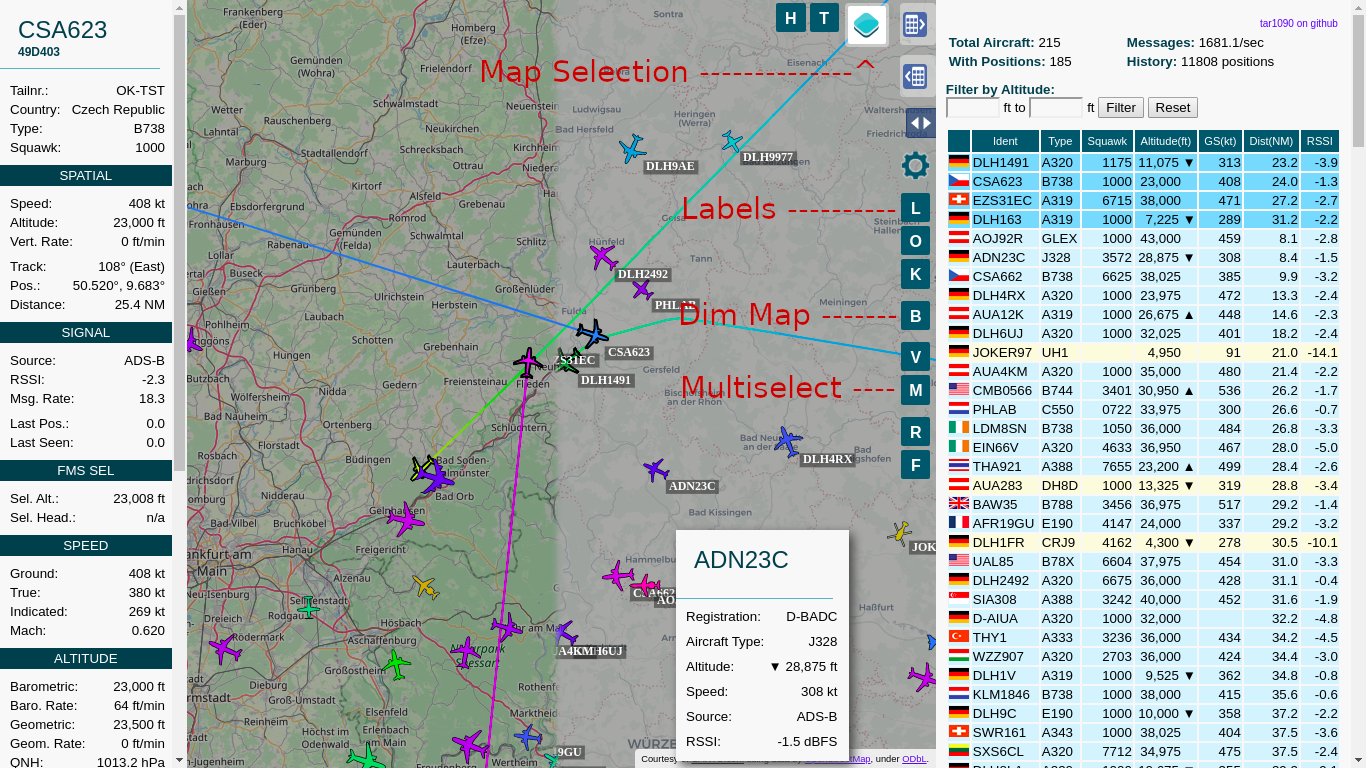
- Improved adjustable history
|
|
- Show All Tracks much faster than original with many planes
|
|
- Multiple Maps available
|
|
- Map can be dimmed/darkened
|
|
- Multiple aircraft can be selected
|
|
- Labels with the callsign can be switched on and off
|
|
|
|
See the bottom of the page for screenshots
|
|
|
|
## Installation / Update:
|
|
|
|
```
|
|
sudo bash -c "$(wget -q -O - https://raw.githubusercontent.com/wiedehopf/tar1090/master/install.sh)"
|
|
```
|
|
|
|
## View the added webinterface
|
|
|
|
Click the following URL and replace the IP address with address of your Raspberry Pi:
|
|
|
|
http://192.168.x.yy/tar1090
|
|
|
|
Check further down or keyboard shortcuts.
|
|
|
|
## Configuration (optional):
|
|
|
|
Edit the configuration file to change the interval in seconds and number of history files saved:
|
|
```
|
|
sudo nano /etc/default/tar1090
|
|
```
|
|
Ctrl-x to exit, y (yes) and enter to save.
|
|
|
|
Apply the configuration:
|
|
```
|
|
sudo systemctl restart tar1090
|
|
```
|
|
|
|
The duration of the history in seconds can be calculated as interval times history_size.
|
|
|
|
## Configuring the web interface (optional):
|
|
|
|
```
|
|
sudo nano /usr/local/share/tar1090/html/config.js
|
|
```
|
|
|
|
Ctrl-x to exit, y (yes) and enter to save.
|
|
Then Ctrl-F5 to refresh the web interface in the browser.
|
|
|
|
## Enable (/disable) FA links in the webinterface (previously enabled by default)
|
|
|
|
```
|
|
# ENABLE:
|
|
sudo sed -i -e 's?.*flightawareLinks.*?flightawareLinks = true;?' /usr/local/share/tar1090/html/config.js
|
|
# ENABLE if the above doesn't work (updated from previous version)
|
|
echo 'flightawareLinks = true;' | sudo tee -a /usr/local/share/tar1090/html/config.js
|
|
# DISABLE:
|
|
sudo sed -i -e 's?.*flightawareLinks.*?flightawareLinks = false;?' /usr/local/share/tar1090/html/config.js
|
|
```
|
|
|
|
Then Ctrl-F5 to refresh the web interface in the browser.
|
|
|
|
## UAT receiver running dump978-fa and skyaware978:
|
|
|
|
This is the relevant part in the configuration file:
|
|
```
|
|
# Change to yes to enable UAT/978 display in tar1090
|
|
ENABLE_978=no
|
|
# If running dump978-fa on another computer, modify the IP-address as appropriate.
|
|
URL_978="http://127.0.0.1/skyaware978"
|
|
```
|
|
Open and save as described above in the Configuration section.
|
|
Follow the instructions in the file.
|
|
|
|
### Installation / Update to work with another folder, for example /run/combine1090
|
|
|
|
|
|
```
|
|
wget -q -O /tmp/install.sh https://raw.githubusercontent.com/wiedehopf/tar1090/master/install.sh
|
|
sudo bash /tmp/install.sh /run/combine1090
|
|
```
|
|
|
|
## Remove / Uninstall
|
|
|
|
```
|
|
sudo bash -c "$(wget -q -O - https://raw.githubusercontent.com/wiedehopf/tar1090/master/uninstall.sh)"
|
|
```
|
|
|
|
## Keyboard Shortcuts
|
|
|
|
|
|
- Q and E zoom out and in.
|
|
- A and D move West and East.
|
|
- W and S move North and South.
|
|
- C or Esc clears the selection.
|
|
- M toggles multiselect.
|
|
- T selects all aircraft
|
|
- B toggle map brightness
|
|
|
|
## Multiple instances
|
|
|
|
The script can install multiple instances, this is accomplished by first editing `/etc/default/tar1090_instances`:
|
|
|
|
On each line there must be one instance.
|
|
First on the line the source directory where the aircraft.json is located.
|
|
Second on the line the name where you want to access the according website.
|
|
(http://pi/tar1090 or http://pi/combo or http://pi/978 in this example)
|
|
|
|
The main instance needs to be included in this file.
|
|
|
|
Example file:
|
|
```
|
|
/run/dump1090-fa tar1090
|
|
/run/combine1090 combo
|
|
/run/skyaware978 978
|
|
```
|
|
|
|
After saving that file, just run the install script and it will install/update
|
|
all instances.
|
|
|
|
The run folder and systemd service will be called tar1090-combo and tar1090-978
|
|
in this example file.
|
|
The main instance is the exception to that rule, having systemd service and run
|
|
directory called just tar1090.
|
|
|
|
### Removing an instance
|
|
|
|
For example removing the instance with the name combo and 978:
|
|
|
|
First remove the corresponding line from `/etc/default/tar1090_instances` and
|
|
save the file so when you update it doesn't get installed again.
|
|
|
|
Then run the following command adapted to your instance name, you'll need to
|
|
include the tar1090- which is automatically added for the service names:
|
|
|
|
```
|
|
sudo bash /usr/local/share/tar1090/uninstall.sh tar1090-combo
|
|
sudo bash /usr/local/share/tar1090/uninstall.sh tar1090-978
|
|
```
|
|
|
|
If the instance was installed with the old method without the tar1090_instances
|
|
file, you'll have to try without the tar1090- before the combo, like this:
|
|
|
|
```
|
|
sudo bash /usr/local/share/tar1090/uninstall.sh combo
|
|
sudo bash /usr/local/share/tar1090/uninstall.sh 978
|
|
```
|
|
|
|
|
|
|
|
## Alternative lighttpd configuration
|
|
|
|
Placing tar1090 on port 8504:
|
|
```
|
|
sudo cp /usr/local/share/tar1090/95-tar1090-otherport.conf /etc/lighttpd/conf-enabled
|
|
sudo systemctl restart lighttpd
|
|
```
|
|
|
|
Placing tar1090 at / instead of /tar1090:
|
|
```
|
|
sudo cp /usr/local/share/tar1090/99-tar1090-webroot.conf /etc/lighttpd/conf-enabled
|
|
sudo systemctl restart lighttpd
|
|
```
|
|
|
|
Note 1: This will only work if you are using dump1090-fa and the default install
|
|
|
|
Note 2: if those cause lighttpd not to start for any reason some other lighttpd configuration is conflicting.
|
|
To solve the problem just delete the configuration you copied there:
|
|
```
|
|
sudo rm /etc/lighttpd/conf-enabled/95-tar1090-otherport.conf
|
|
sudo rm /etc/lighttpd/conf-enabled/99-tar1090-webroot.conf
|
|
sudo systemctl restart lighttpd
|
|
```
|
|
|
|
## nginx configuration
|
|
|
|
If nginx is installed, the install script should give you a configuration file
|
|
you can include. The configuration needs to go into the appropriate server { }
|
|
section and looks something like this in case you are interested:
|
|
|
|
```
|
|
location /tar1090/data/ {
|
|
alias /run/dump1090-fa/;
|
|
}
|
|
|
|
location /tar1090/chunks/ {
|
|
alias /run/tar1090/;
|
|
location ~* \.gz$ {
|
|
add_header Cache-Control "must-revalidate";
|
|
add_header Content-Type "application/json";
|
|
add_header Content-Encoding "gzip";
|
|
}
|
|
}
|
|
|
|
location /tar1090 {
|
|
try_files $uri $uri/ =404;
|
|
alias /usr/local/share/tar1090/html/;
|
|
}
|
|
```
|
|
|
|
If you are using another dump1090 fork, change `/run/dump1090-fa` in this section:
|
|
```
|
|
location /tar1090/data/ {
|
|
alias /run/dump1090-fa/;
|
|
}
|
|
|
|
|
|
## history not loading issue (possible fix)
|
|
|
|
For a day or so i had a bug in the install script turning symbolic links in /etc/lighttpd/conf-enabled into copies of the files they were pointing to.
|
|
|
|
This can cause some other issues with my install script which fiddles with the lighttpd config files to make mod_setenv work.
|
|
|
|
Anyhow if just rerunning the install script does not fix your history loading issue, you can try this:
|
|
|
|
```
|
|
cd /etc/lighttpd/conf-enabled
|
|
for i in *; do if [ -f "../conf-available/$i" ]; then sudo ln -s -f "../conf-available/$i" $i; fi; done
|
|
```
|
|
|
|
After that rerun the install script.
|
|
If you still have history loading issues, get back to me via the github issues or the various forums i frequent.
|